

Introduction
Passwords are turning into the weakest link in modern identity security. As we see phishing attacks, credential theft, and session hijacking increasing, organizations are moving toward phishing-resistant authentication. This shift has brought two powerful technologies into the limelight: Passkeys and Security Keys.
They both eliminate passwords, are built on FIDO standards, and are designed to stop modern identity attacks. But they are not the same.
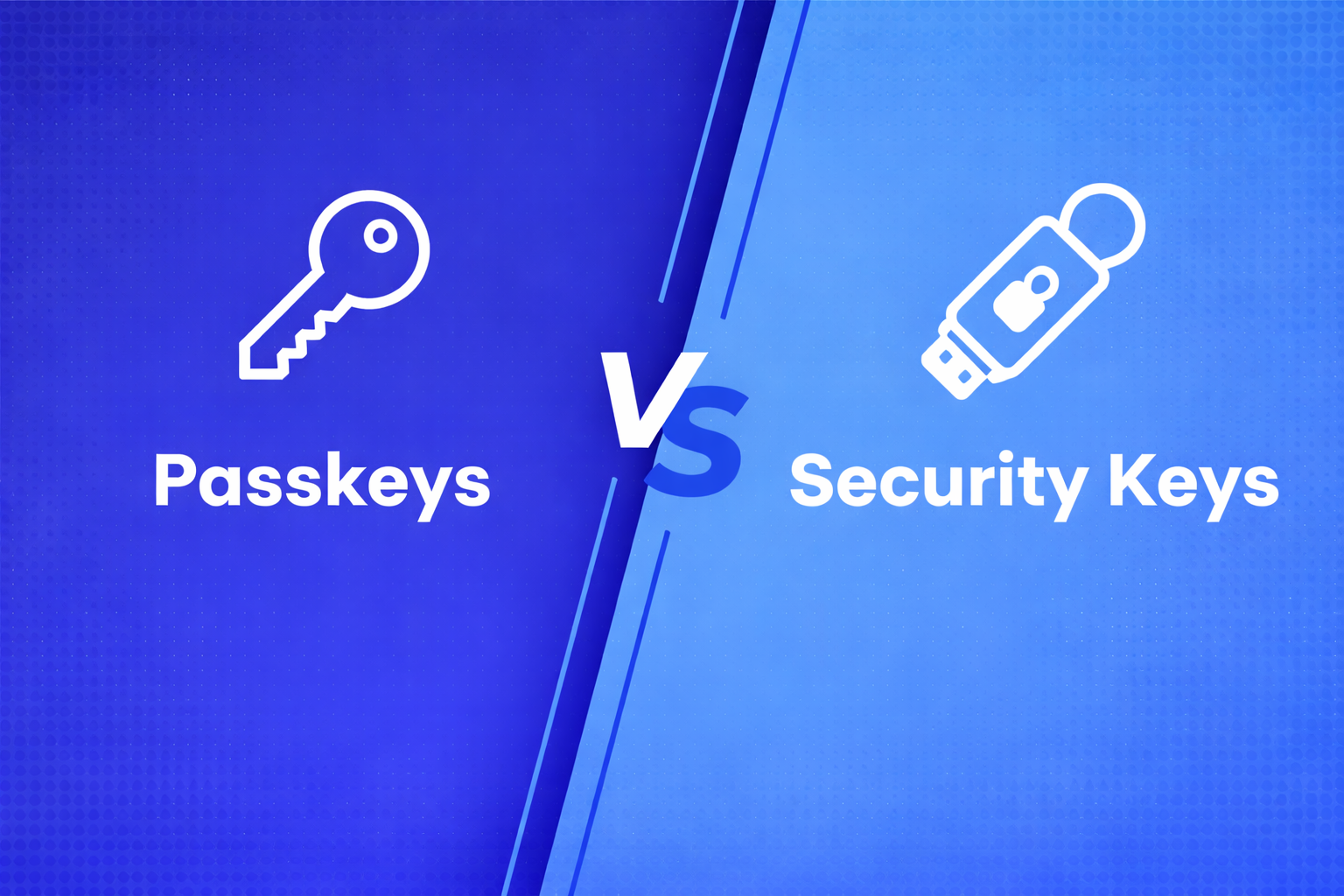
In this guide, we will learn about Passkeys vs Security Keys, how they work, their differences, and when to use each.
Understanding Passkeys and Security Keys
The main difference between Passkeys and Security Keys is in their form and how they store login details.
Passkeys are credentials that can be stored on your device, like a smartphone or laptop, or can also be synced securely across devices using cloud services.
Security Keys, on the other hand, are physical devices that help with authentication. Security Keys usually come in three types: USB, NFC, or Bluetooth tokens that you must have when logging in.
Passkeys and Security Keys both help with login, but Passkeys are software-based, whereas Security Keys are always devices that you need to handle
What Is a Passkey?
A Passkey is a secure, passwordless authentication method based on public-key cryptography that allows users to sign in to apps and websites using Biometrics (fingerprint, face recognition), PINs, or Device unlock mechanisms, without sharing sensitive credentials with the server.
How Do Passkeys Work?
Passkeys use public-key cryptography, where two unique pair of keys are generated:
- A public key stored on the website’s server.
- A private key stored securely on your device.
Here’s a step-by-step process to understand the flow:
- User initiates login.
- Device asks you to verify with Biometric or PIN.
- Private key signs a unique challenge.
- Signed response is sent to the server for verification.
- Server verifies using the public key.
- Access is granted.
Types of Passkeys
Passkeys are differentiated on the basis how they are stored:
1. Synced Passkeys
- Stored and synced across devices.
- Enables seamless login across multiple devices.
2. Device-Bound Passkeys
- Stored on a single device.
- Not synced.
- Offers higher control and security.
Advantages of Passkeys
1. Smoother User Experience
Passkeys eliminate the hassle of typing usernames and passwords. You just unlock your device using Biometrics (fingerprint/face) or device PIN.
2. Protection Against Phishing
Passkeys are built on cryptographic keys and are tied to your devices, making it difficult for phishing.
3. Reduced Security Risks
With no passwords to protect and only public keys stored on the server, organizations can reduce breach risk and simplify credential security at the same time.
Limitations of Passkeys
1. Device Dependence
Passkeys live on your device and require device unlock authentication, accessing your account from a different device can be less flexible unless syncing solutions are in place.
2. Adoption and Ecosystem Readiness
Passkeys depend on solid OS and browser support. For a fully seamless passwordless experience, widespread adoption across platforms is essential.
What Is a Security Key?
A security key also known as a hardware token is a small physical device that adds a powerful layer of protection to your login process.
How Do Security Keys Work?
A step-by-step flow to understand how do Security Keys work:
- The process begins with you logging in.
- You tap your security key.
- Your device asks for user interaction, like touch or tap it.
- Security key signs the challenge.
- Server checks the signature.
- Access is granted.
Types of Security Keys
Security Keys or hardware tokens come in different styles, each designed to offer strong protection in a simple, user-friendly way.
1. USB Security Keys
A security key also known as a hardware token is a small physical device that adds a powerful layer of protection to your login process.
2. NFC Security Keys
- Tap-based authentication.
- Ideal for mobile devices.
3. Bluetooth Security Keys
- Wireless authentication.
- Useful for devices without ports.
Advantages of Security Keys
1. Security
Security Keys offer some of the strongest defenses available. Their cryptographic protection blocks phishing, credential theft, and most forms of identity-based attacks.
2. Frictionless
Users no longer need to memorize passwords or worry about variations just tap or insert the key and you’re in.
3. Compatibility
Built on open standards like FIDO, Security Keys work across many platforms, browsers, and apps, making them easy to adopt in diverse environments.
Limitations of Security Keys
1. Need for Physical Access
The user must have the security key in hand, losing or forgetting it can temporarily disrupt access.
2. Adoption Across Platforms
For users to get the full benefit, more websites and applications need to support security key authentication; a process that’s still growing.
3. Cost and Distribution
Security Keys are physical devices, which means organizations must consider purchasing, managing, and distributing factors that may affect accessibility, especially at scale.
Passkeys vs Security Keys: An Overview
The below demonstrates the keys differences between Passkeys vs Security Keys
| Category | Passkeys | Security Keys |
|---|---|---|
| Form Factor | Software-based; stored on user devices or synced via cloud. | Physical hardware device (USB, NFC, Bluetooth). |
| Ease of Use | Very convenient; uses built-in biometrics or device unlock methods. | Requires carrying a separate device; simple tap/insert action. |
| Security Strength | Strong protection; resistant to phishing; depends on device/device security. | Strongest protection; resistant to phishing, remote attacks, and cloud breaches. |
| Attack Surface | Vulnerable if device is compromised; synced Passkeys may rely on cloud security. | Physical possession required; minimizes remote attack risk. |
| Cloud Dependency | Software Passkeys may sync via cloud for multi-device access. | No cloud storage; keys store credentials locally only. |
| Device Flexibility | Easily accessible across synced devices; tied to ecosystem (Apple, Google, Microsoft). | Works across multiple platforms; consistent experience on all supported devices. |
| Adoption & Compatibility | Growing, but dependent on OS/browser support. | Wide support for FIDO2/WebAuthn across apps and platforms. |
| Cost | Free; uses existing device hardware. | Requires purchasing physical keys; cost varies. |
| User Convenience | High; no extra device to carry. | Moderate; must have the physical key present. |
| Ideal Use Cases | Everyday users; personal accounts; quick and seamless login. | High-security environments; enterprise users; developers; admin accounts. |
| Phishing Resistance | Very strong. | Extremely strong; highest protection level. |
Best Practices for Enhanced Protection
It is important to use both Passkeys and Security Keys and follow security practices to get the most out of each. The following recommendations will help make your authentication strategy stronger and keep users protected:
1. Enable Multi-Factor Authentication (MFA)
Use Passkeys with another layer of authentication like Biometrics or a One Time Password (OTP) to stop people from getting in without permission.
2. Keep your Devices Updated
Make sure all devices that use Passkeys have the software and firmware. Updates usually include security fixes that protect against new threats.
3. Build User Awareness
Educate your users how to recognize phishing attempts, social engineering tactics, and other common scams.
4. Use Account Lockout Policies
Set limits on how times someone can try to log in incorrectly to prevent brute-force attacks. If someone tries many times their account will be locked out for a while.
5. Look for Trusted, Certified Vendors
Choose Security Keys from providers like AuthX that follow industry standards like FIDO2 and test their products thoroughly. Certified keys are strong and reliable.
6. Centralize Key Management
Use a system that makes it easy to give out take back and manage Security Keys across the organization. This way you can keep track of everything.
7. Promote Physical Key Protection
Encourage users to store their Security Keys properly, they will not get stolen.
8. Prepare Backup and Recovery Plans
Have an idea for what to do if a security key is lost, damaged or stolen. There must be a way for users to log in so they can still get in without making the system less secure.
By implementing these best practices, organizations can significantly strengthen their security posture, reduce risk exposure, and stay resilient against evolving threats.
Real-World Use Cases: Passkeys and Security Keys in Action
Passkeys (Digital, Device-Based Authentication)
- Consumer Apps (Google, Apple, Microsoft)
Users sign in to apps like Google or Apple using Face ID, fingerprint, or device PIN instead of passwords. Thiseliminates phishing risks and improves login speed. - E-commerce & Banking Platforms
Customers authenticate payments or logins using passkeys stored on their devices. This reduces fraud and improves checkout experience without OTP delays. - Remote Workforce (SSO + SaaS Access)
Employees access cloud apps like Microsoft 365 using passkeyssynced across devices. No need to remember passwords, enabling seamless and secure remote work. - Cross-Device Authentication
A user logs into a website on a laptop by approving a prompt on their phone. Passkeys stored in the cloud enable easy access across devices without manual credential entry.
Security Keys (Physical, Hardware-Based Authentication)
- High-Security Enterprise Access
Organizations require employees to use hardware keys like YubiKey for logging into corporate systems. This ensures phishing-resistant MFA for sensitive data access. - Privileged IT/Admin Accounts
System administrators use security keys to access critical infrastructure (servers, cloud consoles). Even if credentials are compromised, attackers cannot log in without the physical key. - Government &DefenseSystems
Agencies enforce hardware-based authentication for accessing classified systems, ensuring only physically verified users can log in. - Cryptocurrency & Financial Security
Users secure crypto wallets and high-value financial accounts with security keys, preventing unauthorized access even in case of phishing or malware attacks.
Passkey vs Security Key: Which Should You Choose?
There is no one-size-fits-all answer.
Choose Passkeys if:
- You want a seamless user experience.
- You are deploying passwordless at scale.
- Your users rely on modern devices.
Choose Security Keys if:
- You need maximum security assurance.
- You are protecting privileged accounts.
- You operate in high-risk or regulated environments.
Best Approach: Use Both
Many organizations adopt a hybrid strategy:
- Passkeys for general users.
- Security Keys for high-risk access.
This balances usability and security without compromise.
Final Thoughts
Passwordless authentication is the new future. Passkeys and Security Keys are not competing technologies, they are complementary. Organizations that understand how to use both effectively will be better prepared to stop phishing, reduce risk, and deliver secure user experiences at scale. Implementing Passkeys and Security Keys with AuthX is a process. AuthX supports FIDO2 and WebAuthn standards. It makes it easy for organizations to add both authentication methods to their login process without needing to do a lot of development work.
Ready to move beyond passwords and implement phishing-resistant authentication? See how passkeys and security keys can fit into your environment with a tailored demo.
FAQs
What is a security key?
A security key also known as a hardware token is a small physical device that adds a powerful layer of protection to your login process.
What is passkey?
A Passkey is a secure, passwordless authentication method based on public-key cryptography that allows users to sign in to apps and websites using Biometrics (fingerprint, face recognition), PINs, or Device unlock mechanisms, without sharing sensitive credentials with the server.
How to create a passkey?
To create a passkey, go to the website or application that supports passkey authentication. During account setup or login, choose the passkey option and follow the prompts on your device. You will be asked to confirm using your fingerprint, facial recognition, or device PIN. Once confirmed, a secure passkey is automatically generated and stored on your device or cloud account, depending on your platform.
Security Key vs Passkey: Which is better?
In a Security Key vs Passkey comparison, the better choice depends on your needs:
Passkeys are ideal for everyday users who want simple, fast, passwordless login across multiple devices.
Security Keys are best for high-risk environments such as IT admins, developers, or enterprises because they offer stronger protection through hardware-backed authentication.