

Are Security Keys Worth It? Pros, Cons & Real-World Benefits
Think of your digital accounts as a vault. A password is a decent lock, but in a world of high-tech “digital lock-pickers,” it’s a lock that can be cloned, guessed, or tricked into opening. If a hacker gets your password, they can access your data and your identity.
Instead of relying on a string of text that lives in your head (and likely on a hacker’s database), a security key is a physical “master key” that lives in your pocket.
That’s why more people and businesses are turning to security keys, a simple but incredibly powerful way to protect accounts with near-phishing-proof authentication. But are security keys really worth it? And do the benefits outweigh the cost and effort of switching?
This blog covers the pros, cons, and benefits of using security keys so you can decide whether they’re the right choice for your personal security or your organization’s long-term protection.
Let’s explore in what ways security keys live up to the hype.
What Is a Security Key?
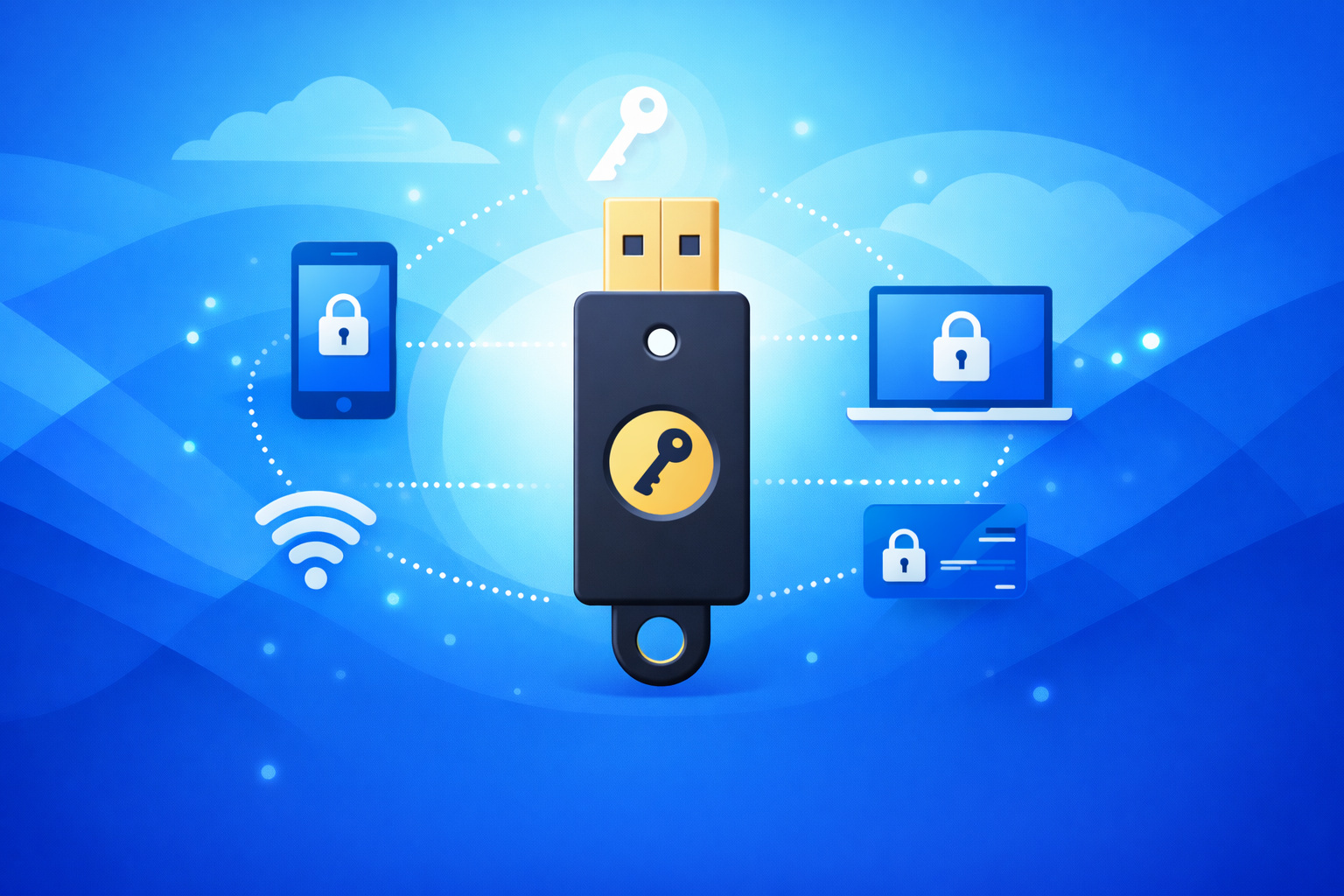
A hardware security key, sometimes referred to as a security key, is a small piece of hardware designed to give your accounts a much stronger layer of protection. These keys, which rely solely on passwords, work alongside your laptop, workstation, or app to verify your identity using secure, phishing-resistant technology.
They’re compact, easy to carry, and often plug right into your computer, similar to a USB drive. Once connected, a hardware security key works through simple software integration to confirm that you are the one trying to log in.
One of the most popular examples is the FIDO2 security key, such as a YubiKey, which is well known for blocking phishing attacks and supporting Passwordless Authentication. These devices make it much harder for attackers to exploit stolen passwords, thereby preventing threats such as credential stuffing, keyloggers, and advanced phishing schemes. Considering that 80% of data breaches happen due to compromised logins, adding a security key device is one of the smartest ways to protect sensitive accounts.
Types of Hardware Security Keys
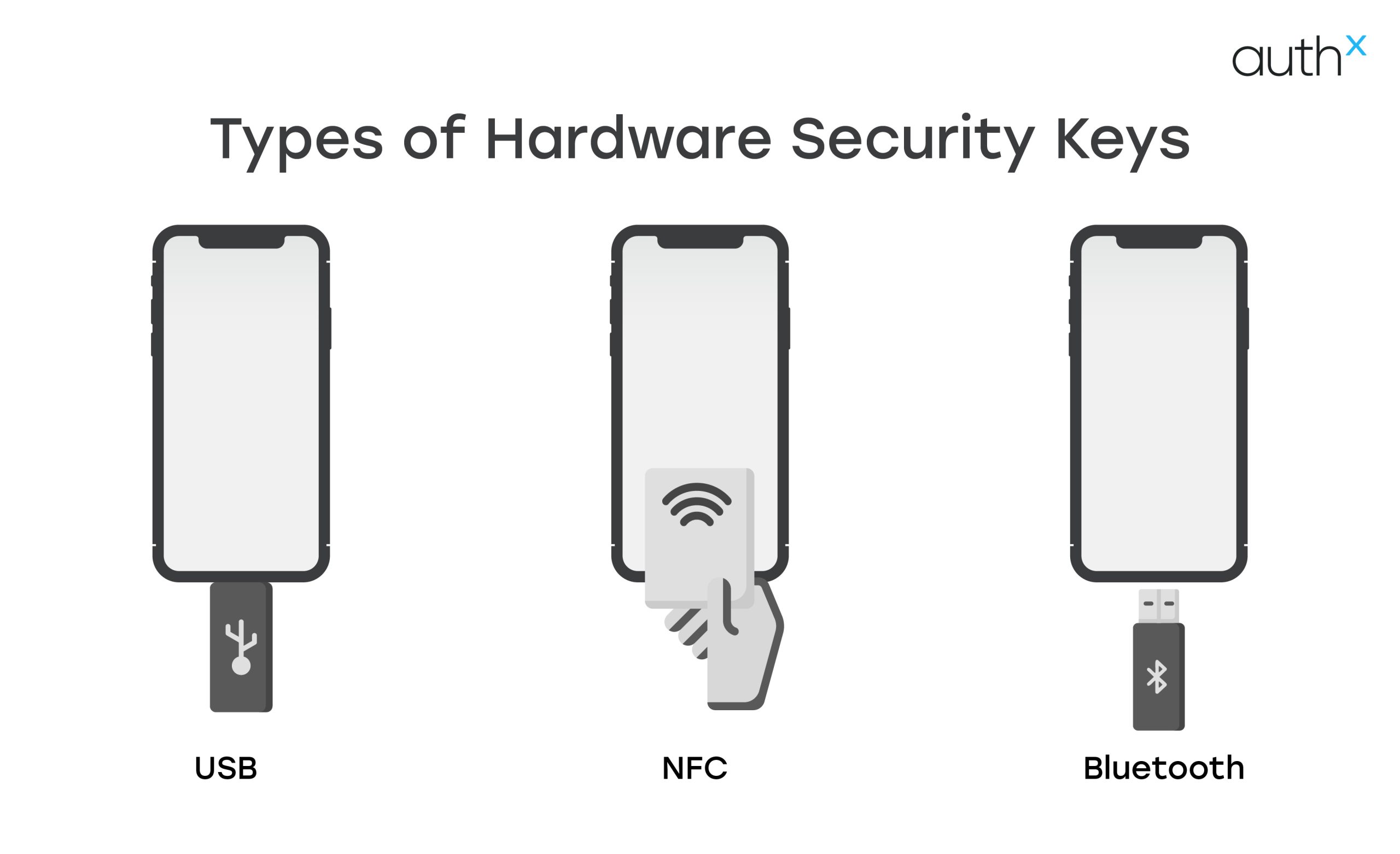
Below are a few types of hardware security keys that include:
1. USB Security Keys
USB security keys are physical authentication devices that plug directly into a device’s USB port to verify a user’s identity during login. They provide a simple plug-and-authenticate experience, offering strong phishing-resistant security for applications and online accounts.
USB security keys come in different connector types to support various devices:
- USB-A Security Keys – The most common type, designed for traditional USB-A ports found on many desktops and older laptops.
- USB-C Security Keys – Built for modern devices, these connect to USB-C ports commonly found on newer laptops, tablets, and smartphones.
2. NFC-enabled Hardware Security Keys
These allow quick, contactless authentication; just tap the key on a (Near-Field Communication) NFC-ready phone for instant verification.
3. Bluetooth Hardware Security Keys
Perfect for devices without USB ports, offering wireless authentication across different environments.
How Security Keys Work?
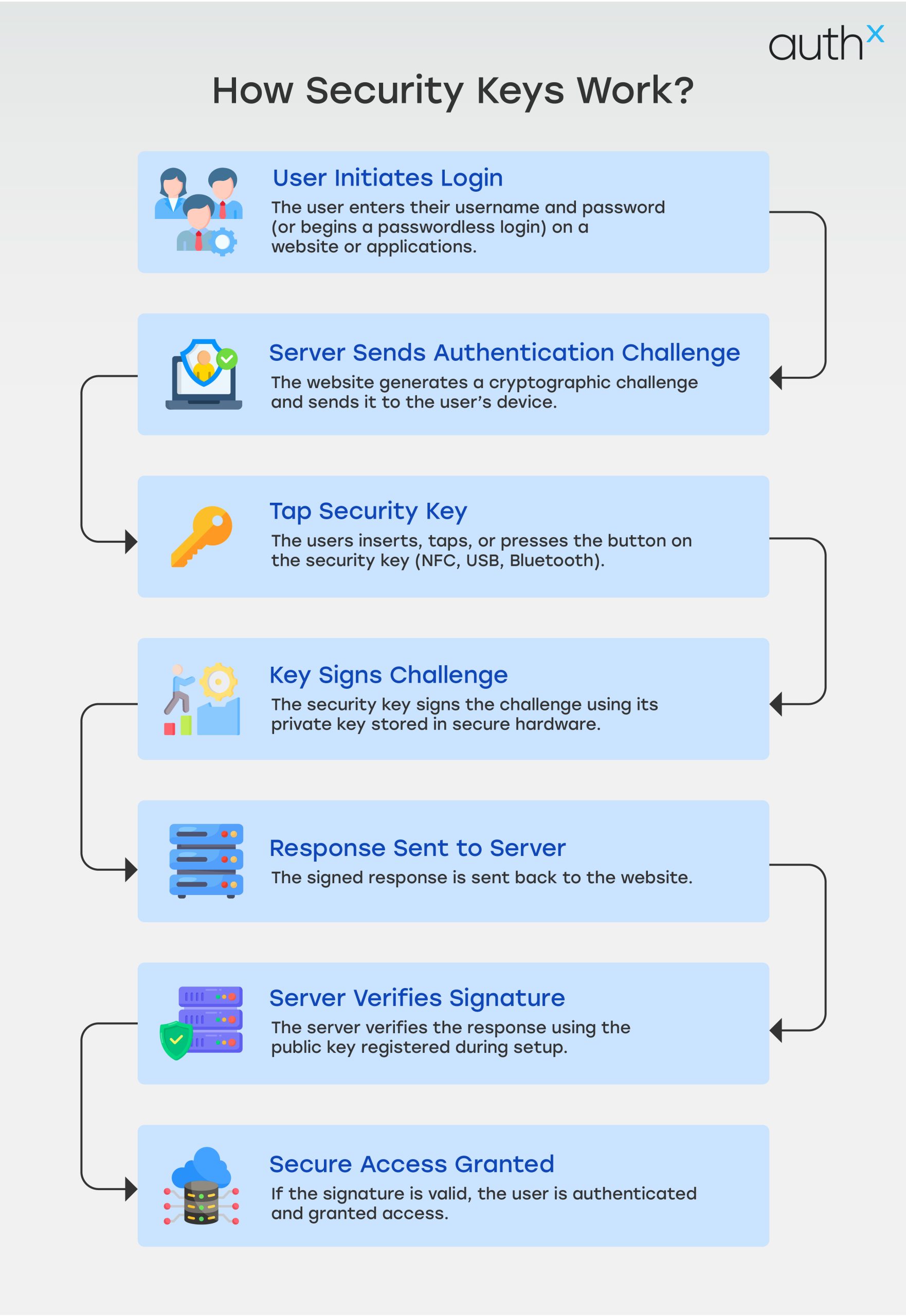
Security keys make logging in safer and smoother by using a security key device, a small piece of hardware you plug in via USB, tap over NFC, or connect through bluetooth to confirm your identity.
These devices rely on strong public-key cryptography, the same technology used in FIDO2 and U2F standards to block phishing, credential theft, and unauthorized access.
Here’s a simple breakdown of how it works:
- A unique key pair is created
Your external security key generates a public key (stored by the service) and a private key (stored securely inside the device and never shared). - You begin the login
Enter your username and password as usual. - The service sends a challenge
The website sends a one-time challenge to your security key device, which signs it using its private key. - Your identity is verified
The site checks the signed challenge using your stored public key.
If it matches, you’re instantly logged in.
Even if hackers steal your password, they still can’t log in because the private key needed to approve access stays locked inside your physical security key.
Benefits of Using Security Keys
When you move from digital codes to a physical security key, you aren’t just changing how you log in; you’re changing the rules of the game for hackers.
Here is a breakdown of why a physical device is your best defense:
1. The Ultimate "Double-Check" (MFA)
Most sites ask for a password plus a code sent to your phone. Security keys follow NIST guidelines (the “gold standard” for security rules) by requiring two distinct things: something you know (your password) and something you physically hold (the key). A hacker in another country might steal your password, but they can’t steal the object in your pocket.
2. A Shield Against Phishing
Phishing works by tricking you into typing your password into a fake website. However, a security key is “smart.” It verifies the website’s identity before it works. Even if you are tricked, the key won’t be it; simply won’t “hand over” the digital credentials to a fake site, making social engineering useless.
3. Closing the Door on External Threats
Hackers usually rely on stolen passwords to break into company networks. Using a security key alongside a VPN creates a sealed tunnel for your data. Even if a malware attack captures your keystrokes, the attacker can’t bypass the physical “handshake” required by the key.
4. Faster and Easier Than Codes
Standard 2FA can be annoying; you have to find your phone, wait for a text, and type in a six-digit code before it expires. Security keys offer “plug-and-go” simplicity. You just plug it into your USB port or tap it against your phone (via NFC).
5. Stopping "Brute Force" Cold
Cybercriminals use software to guess thousands of password combinations per second (brute force) or try old passwords from other leaks (credential stuffing). When a physical key is required, these automated attacks hit a brick wall.
6. Staying Legal (Compliance)
Regulations like GDPR require companies to take “reasonable steps” to protect user data. Because hardware keys are significantly more secure than passwords alone, using them helps businesses meet these legal standards and avoid massive fines associated with data breaches.
Popular Security Key Examples
The best security keys combine strong cryptography with convenience and durability. Features like FIDO2 support, NFC, and Bluetooth can further improve both security and the overall user experience.
Some widely trusted options include the YubiKey 5 NFC, YubiKey 5 Nano, and Thetis FIDO U2F Security Key. These devices offer exceptional protection, excellent compatibility, and easy portability, making them great choices for anyone looking to strengthen their account security.
How to Sign in With a Security Key?
Signing in with a security key is quick, secure, and surprisingly easy.
Here’s how the process typically works across most websites and apps that support FIDO2, WebAuthn, or U2F.
1. Start Your Login Like Usual
Go to the website or app you want to access and enter your username (and password, if required).
2. Choose the “Use Security Key” Option
On the login screen, select the option that says something like:
- “Sign in with security key”
- “Use USB key”
- “Use external authenticator”
This tells the system you’re using a hardware key instead of a password or code.
3. Insert or Tap Your Security Key
Depending on your key type:
- USB-A / USB-C keys → Insert the key into your device’s USB port
- NFC keys → Tap the key on your phone’s NFC reader
- Bluetooth keys → Press the button to pair/connect
Your device may ask you to touch the metal pad on the key to confirm you’re physically present.
4. Complete Any Additional Prompts
Some services may require:
- A quick PIN (only known to you)
- A fingerprint scan (if your key supports biometrics)
- Confirming a prompt on-screen
These extra steps ensure the login is coming from you, not an attacker.
5. You're Signed In
Once verified, the website grants access instantly. The private key never leaves your security key, and no one, including attackers, can copy it.
Your login is:
- Phishing-resistant
- Fast
- Secure by design
Why This Works So Well?
Security keys use public-key cryptography, meaning:
- The website stores only your public key.
- Your private key stays locked inside the hardware.
- Even if someone steals your password, they still can’t log in.
This makes it one of the safest ways to authenticate today.
How to Set up a Security Key?
Setting up a security key is easier than most people expect. Whether you’re using a YubiKey or any other FIDO2/U2F key, the setup process is almost always the same.
1. Choose and Plug In Your Security Key
First, take your security key and connect it to your device:
- USB-A or USB-C → Plug it into a laptop or desktop
- NFC-enabled key → Tap it on the back of your smartphone
- Bluetooth key → Put it in pairing mode and connect
Your device should immediately detect it.
2. Go to the Account’s Security Settings
Open the account where you want to set up the security key, such as:
- Microsoft
- GitHub
- Dropbox
- Work SSO or Corporate login systems
Look for:
- Security
- Sign-in & security
- Two-factor Authentication (2FA)
Then choose “Add Security Key” or “Set up a security key.”
3. Follow the On-Screen Instructions
The website will now walk you through the setup process. Typically, you will be asked to:
- Touch the metal pad on the key (to confirm it’s you)
- Create a PIN for your key (FIDO2 keys require this)
- Name your key (e.g., “My USB key” or “Work Security Key”)
This step binds your security key to your online account using public-key cryptography.
4. Register the Key
The website will now complete registration by saving your public key.
Your private key stays locked inside your hardware key — no one, not even the website, ever sees it.
This is what makes security keys phishing-resistant and extremely secure.
5. Add a Backup Key
Most security experts suggest registering two keys:
One you use daily
One is stored safely as a backup
That way, you never get locked out if you lose your main key.
6. Test Your Login
Now log out and try signing in again using:
- “Sign in with security key”, or
- Your password (if still enabled) + tap/insertion of the key
You’ll see how fast and easy the process is.
What are the different issues with Security Key?
While security key devices are among the strongest authentication tools available, there are a few things to keep in mind:
1. Risk of Losing the Key
They’re small and easy to misplace.
If you lose your only physical security key, you may be locked out.
2. Limited Device Compatibility
Different devices support different connection types:
- Some laptops lack USB-C
- Some phones don’t support NFC
- Some keys don’t offer Bluetooth
Solution: Choose a key with multiple connection options (USB-C + NFC + Bluetooth).
3. Not All Services Support Security Keys
While adoption is growing, not every app or website allows FIDO2/U2F logins.
Solution: Use your external security key on platforms that support it and keep an alternate login method available.
Pros and Cons of Security Keys
Advantages of Security Keys
| Strongest protection against phishing |
Security keys use public-key cryptography, making them highly resistant to phishing and credential theft. |
|---|---|
| Fast & seamless login | One tap or quick insertion provides instant authentication. |
| Highly secure | Keys cannot be intercepted, cloned, or guessed like passwords or SMS codes. |
| Portable & durable | Keys are small, sturdy, and easy to carry on a keychain. |
| Works offline | No need for internet or mobile network to authenticate. |
| Perfect for passwordless login | Enables true passwordless MFA on supported platforms. |
| Reduces account takeover attacks | Even if attackers steal your password, they can’t log in without the key. |
Disadvantages of Security Keys
| Risk of losing the key | Since it’s a physical device, misplacing it can lock you out unless you have backups. |
|---|---|
| Initial setup may be confusing | Non-technical users may need guidance to enroll a key. |
| Not all websites support them | Some apps or services do not yet allow FIDO2/U2F authentication. |
| Device compatibility issues | Requires USB-A, USB-C, NFC, or Bluetooth; not all devices support every format. |
| Costs money | Unlike SMS or apps, security keys are paid hardware |
| Requires physical access | You must have the device with you to sign in. |
| PIN or biometric issues | Forgetting the key PIN or hardware malfunction can cause temporary trouble. |
What is the Difference Between a Security Key and Passwordless Authentication?
Let’s understand the differences with the table below:
| Feature |
Security Key |
Passwordless Authentication |
|---|---|---|
| What It Is? |
A physical hardware device (USB, NFC, Bluetooth) used for authentication. |
A login method that eliminates passwords entirely using Biometrics, Device Cryptography, or Passkeys. |
| Form Factor |
Physical object you must carry. |
Software-based; built into devices, browsers, and identity systems. |
| Authentication Factors Used |
Possession + User presence (touch/tap). |
Biometrics (Face ID, fingerprint), device-bound keys, PIN, or passkeys. |
| Dependency on Hardware |
Requires an external physical key. |
No dedicated hardware needed; uses your device (phone/laptop). |
| Ease of Use |
Simple but requires inserting/tapping a key each time. |
Very seamless; login with Face ID, fingerprint, or auto-authenticate. |
| Phishing Resistance |
Very high - Hardware keys are the strongest form of phishing-resistant MFA. |
High - Passkeys and biometrics are phishing-resistant but depend on device security. |
| Offline Usage |
Works offline (USB/NFC keys). |
Works offline depending on implementation (biometrics do; cloud-synced passkeys may not). |
| Device Sync |
Does not sync across devices; must register key individually. |
Often syncs across devices via platforms like Apple iCloud, Google Password Manager, or Microsoft. |
| Risk of Loss |
Can be lost or misplaced, requiring backup methods. |
No physical device to lose except your phone/laptop. |
| Setup Complexity |
Requires manual registration on every service. |
Usually simpler; follows OS/browser setup flows. |
| Best Use Cases |
Admins, developers, privileged accounts, high-risk industries (finance, government). |
Everyday users, workforce authentication, consumer apps. |
| Examples |
YubiKey, Google Titan, Feitian. |
Passkeys, Windows Hello, Face ID, Touch ID, FIDO2 passwordless login. |
What if you Lose your Security Key?
If your security key ever gets lost or misplaced, don’t panic; you still have several ways to regain access to your accounts. Here’s what you should do:
1. Start the account recovery process
Begin by using the service’s built-in recovery options. This may involve answering security questions or confirming your identity through other trusted methods.
2. Use your backup codes
If you saved backup codes during the initial setup, this is the time to use them. They act as an immediate fallback when your security key isn’t available.
3. Try alternative authentication methods
Many services let you set up extra verification options like SMS codes, TOTPs, or email verification. Use any backup method you previously enabled to get back in.
4. Report the loss if needed
If your key was lost in a public place or stolen, it’s a good idea to report it, especially if it’s tied to your workplace account. This helps prevent potential misuse.
5. Remove the missing key from your account
Once you’re signed in again, head to your security settings and remove the lost key from your list of trusted authentication devices to ensure no one else can use it.
6. Register a new security key
Finally, add a new security key to your account so your MFA setup stays strong and secure. And while you’re at it, make sure you’ve saved updated backup codes or enabled alternative login methods as extra protection.
Enabling MFA with security keys through AuthX
AuthX is a powerful identity security platform that makes strong authentication seamless. It supports adaptive MFA and works seamlessly with a wide range of authenticators, including popular hardware options like YubiKey and FIDO2 security keys. This tight integration gives your login process an added layer of protection without slowing users down.
With AuthX, you can secure endpoints, cloud, and on-prem apps, VPNs, and Outlook Web Access all from one unified system. On top of that, AuthX offers convenient self-service password management and enterprise-grade SSO, helping your organization strengthen security while making access easier for everyone.
FAQs
What is an external security key, and why is it used?
An external security key is a small physical device used as part of secure login processes. It works as a strong second factor for authentication, offering protection far beyond passwords.
How does a security key work during authentication?
Security key uses public-key cryptography to verify your identity. During login, the service sends a unique challenge to the key.
What is a two-factor authentication security key?
A two-factor authentication security key is a physical device used as your second factor during login. It protects against phishing, SIM-swapping, and man-in-the-middle attacks making it one of the strongest forms of 2FA available today.
How is a two-factor authentication USB key different from app-based MFA?
A two-factor authentication USB key provides hardware-level security that app-based codes cannot match. While authenticator apps rely on software, a physical USB key requires direct interaction like inserting the key or tapping it making it resistant to phishing and remote attacks.
What is a security key for MFA, and do I need one?
A security key for MFA is a hardware device used as one of the factors in multi-factor authentication. It’s especially recommended if you handle sensitive data, manage admin accounts, or access corporate systems.
Are hardware-based protection keys worth the investment?
Yes, hardware-based protection keys are absolutely worth it if you want the highest level of account security.
Can a security key replace passwords entirely?
On many platforms, yes. Modern authentication standards like FIDO2 allow security keys to support passwordless login. Instead of typing a password, you simply authenticate with your hardware key making your login fast, secure, and phishing-resistant.